Changing DNS for mining connectivity
What DNS has to do with mining, how to change the DNS server on a PC, router or rig, and how to test that it fixed the problem.
What DNS has to do with mining
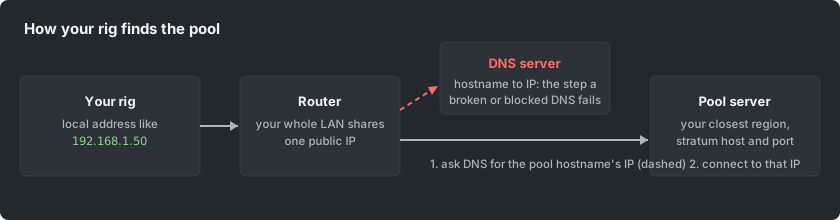
Before your rig can connect to a pool, it must turn the pool's hostname into an IP address; that lookup is DNS. When an ISP's DNS server is broken, slow, or deliberately refuses to answer for mining domains (a common soft-block), the miner reports "host not found" or hangs on connect even though the pool is fine. Changing which DNS server your machine asks is the fix, and it takes minutes.
Public DNS servers
The widely used public resolvers are Cloudflare (1.1.1.1 and 1.0.0.1), Google (8.8.8.8 and 8.8.4.4) and Quad9 (9.9.9.9). Any of them replaces your ISP's resolver; pick one and enter both its addresses as primary and secondary.
Where to change it
- One PC: network adapter settings, IPv4 properties, set the DNS servers manually.
- Whole network: the router's DHCP or WAN settings; every device behind it inherits the change on its next lease.
- A rig running a mining OS: the OS network settings screen carries a DNS field.
- Note: changing DNS does not hide your traffic. If the block is deeper than DNS, use the pool's alternative routes and proxy described on the How to Mine page.
Testing the fix
After the change, look up the pool hostname from the affected machine (nslookup or ping on the command line). An answer with an IP address means DNS is fixed; then start the miner and confirm the connect line in its console. If lookup works but connect still fails, the problem is not DNS: check the port, TLS choice and the firewall next.