How to set up Telegram mining notifications
Link Telegram to the wallet you mine with: copy the verify command from your dashboard, send it to the bot, pick the events you care about, and use the chat commands afterwards.
Open the notification settings
Everything is set up from your own miner dashboard, so there is no account to create and no password to remember. Open the pool site for the coin you are mining, paste your wallet address into the search box on the miner page, then open the Settings tab and choose Notifications.
If you started from the HeroMiners hub instead, the panel there has a button that takes you to the same settings on the pool site. Notifications belong to one pool at a time, so they are always set up on the site of the coin you are mining.
Confirm the address is yours
Anyone can look up any address, so before the pool lets you change a setting it checks that the request is coming from a machine that is actually mining to it. This is the same check that guards your payout threshold, and most of the time it passes on its own, because you are opening the dashboard from the same connection your rig uses.
If it does not pass, the page asks for the IP address of your busiest worker and you can paste it in. The How to find your worker IP address guide walks through where to read that number on Windows, Linux and HiveOS.
Copy the verify command
Press Telegram in the notification panel. It shows a short verify command with a six digit code in it and a copy button next to it. Copy the whole line rather than just the digits.
The code is single use and expires after a few minutes. If you take too long, open the panel again and it hands you a fresh one, so there is no way to get stuck.
Send it to the bot
Open Telegram and go to the chat you want the alerts to arrive in. That can be a direct message with the pool bot, or a group or channel the bot has been added to. Paste the line you copied and send it.
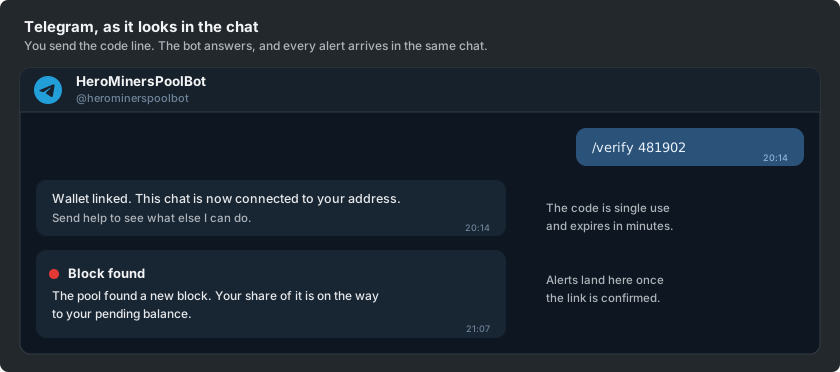
Sending the code from the chat is what proves the chat is yours, which is why it goes to the bot rather than being typed into the web page. The bot replies as soon as it accepts it.
Confirm it on the dashboard
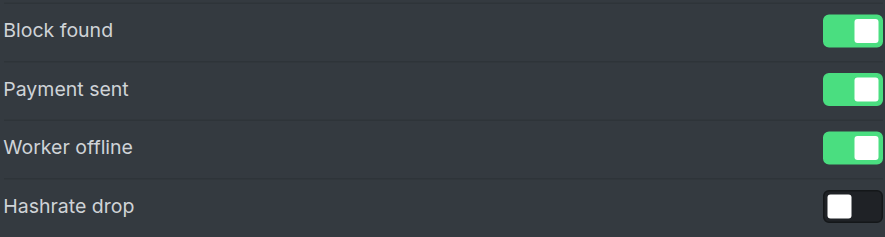
Go back to the dashboard and press the button confirming you have sent the code. Telegram now shows as linked, and the link button is replaced by a switch for each event.
A block found by the pool, a payment sent to you, a worker that has gone quiet, and a meaningful drop in your hashrate are the events on offer. Turn on the ones worth interrupting you for and leave the rest off.
Use the bot from the chat
Once the chat is linked you can talk to the bot without opening the dashboard. Send stats to get your current hashrate and balance back in the chat, and help to see everything it understands.
Send mute followed by a number of hours for a quiet period, unmute to end it early, and stop to switch the channel off entirely. A channel stopped that way shows as paused on the dashboard with a button to resume it, so you can always turn it back on from either side.
Unlink when you are done
Turning a single event switch off stops that event straight away. Unlinking the channel stops all of them and removes the link, so the bot no longer knows which address the chat belongs to.
You can unlink from the dashboard, or by sending unlink to the bot. Linking again later is the same few steps with a fresh code, and nothing about your mining changes either way.