How to set up browser push mining notifications
Turn on browser notifications for the wallet you mine with, understand why each browser and device is separate, and choose the events that alert you.
Open the notification settings
Everything is set up from your own miner dashboard, so there is no account to create and no password to remember. Open the pool site for the coin you are mining, paste your wallet address into the search box on the miner page, then open the Settings tab and choose Notifications.
Do this in the browser you actually want the alerts in, because browser push is tied to that one browser on that one device. Setting it up on a desktop does not put alerts on your phone.
On an iPhone or iPad there is one extra step first. Safari only offers push to sites that have been added to the home screen, so on an ordinary tab the permission prompt below never appears. The How to install the pool as an app on your phone guide takes a minute, and push works normally once it is done.
Confirm the address is yours
Anyone can look up any address, so before the pool lets you change a setting it checks that the request is coming from a machine that is actually mining to it. This is the same check that guards your payout threshold, and most of the time it passes on its own, because you are opening the dashboard from the same connection your rig uses.
If it does not pass, the page asks for the IP address of your busiest worker and you can paste it in. The How to find your worker IP address guide walks through where to read that number on Windows, Linux and HiveOS.
Allow notifications when asked
Press the push option in the notification panel. The browser asks once whether the site may show you notifications. Allow it and the link is finished immediately, with no code to send and no address to copy.
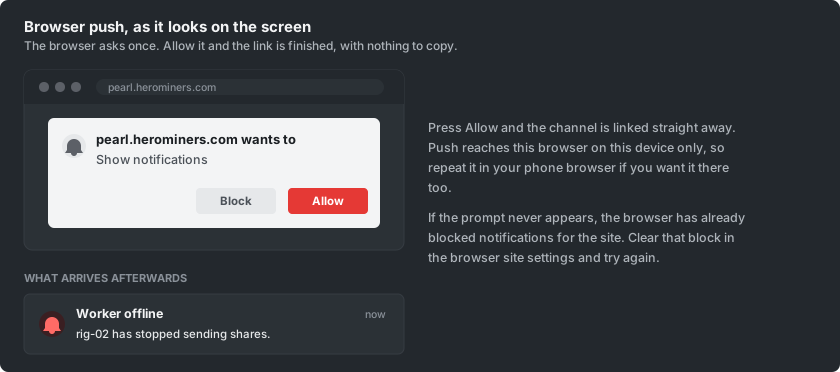
If the prompt never appears, the browser has already blocked notifications for the site. Open the site settings in your browser, clear that block, reload the page and press push again.
Choose which events alert you
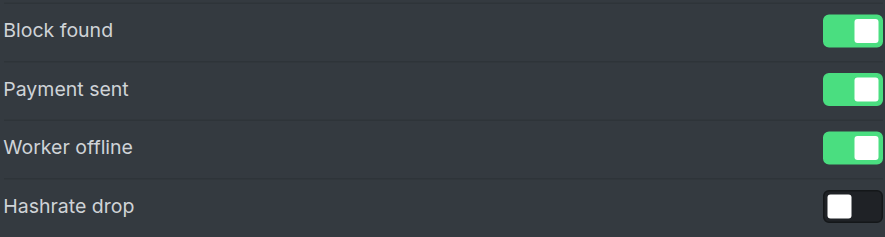
The link button is replaced by a switch for each event, so you decide exactly what is worth a notification on this screen.
A block found by the pool, a payment sent to you, a worker that has gone quiet, and a meaningful drop in your hashrate are the events on offer. The switches belong to this browser alone, so a laptop can carry everything while a phone carries only the urgent ones.
Add other devices, or turn it off
Push reaches the browser you allowed it in and nowhere else. To get the same alerts on another computer, open the dashboard in that browser and repeat the permission step there. On a phone, install the site first and turn push on inside the installed app, or link one of the chat channels instead so a single link covers every device you carry.
Turning a single event switch off stops that event straight away, and unlinking push on the dashboard stops all of them. Revoking the notification permission in the browser also stops them arriving, though unlinking on the dashboard is the cleaner way, since nothing is sent at all.